
Living Documentation
Living Documentation is a dynamic, always-up-to-date view of your tests, test suites and system behavior. Instead of relying on static documents that quickly become outdated, teams can use Living Documentation to share test coverage, scenario details, and real-time results directly within their development tools. Living Documentation provides a single source of truth that evolves with your code and test cases. In Testomat.io, this means your automated tests don’t just verify functionality — they also become readable, shareable, and traceable documentation that supports collaboration and decision-making across the team.
-
Non-technical stakeholders (e.g., Product Managers, Compliance Teams) can view test coverage and feature behavior without diving into code. Makes it easy to review acceptance criteria or BDD scenarios.
-
You can embed tests tied to specific Jira tickets directly in documentation or dashboards. Easily include documentation in Confluence pages, sprint reports, or product specs.
-
You can trace a test to a suite, feature, user story, or Jira ID.
-
In Behavior-Driven Development (BDD), living documentation becomes the specification.
-
Make tests or suites publicly viewable, or embed internally for team access. Useful for partners, clients, or external QA vendors.
Share Living Documentation
Section titled “Share Living Documentation”Share Living Documentation with people who do not have a Testomat.io account. You choose how long the link works, and you can protect it with a passcode.
Before you start, turn on Living Documentation in Company Settings. See Share Options.
- Go to Settings and select Project.
- In the Sharing section, turn on Enable Shared Living Docs.
- In Expiration Date, select the last day of access. The default is 7 days from today.
- Keep Protect by passcode selected to protect the link.
- Click Share.
- Copy the link and the passcode. The passcode shows only once.
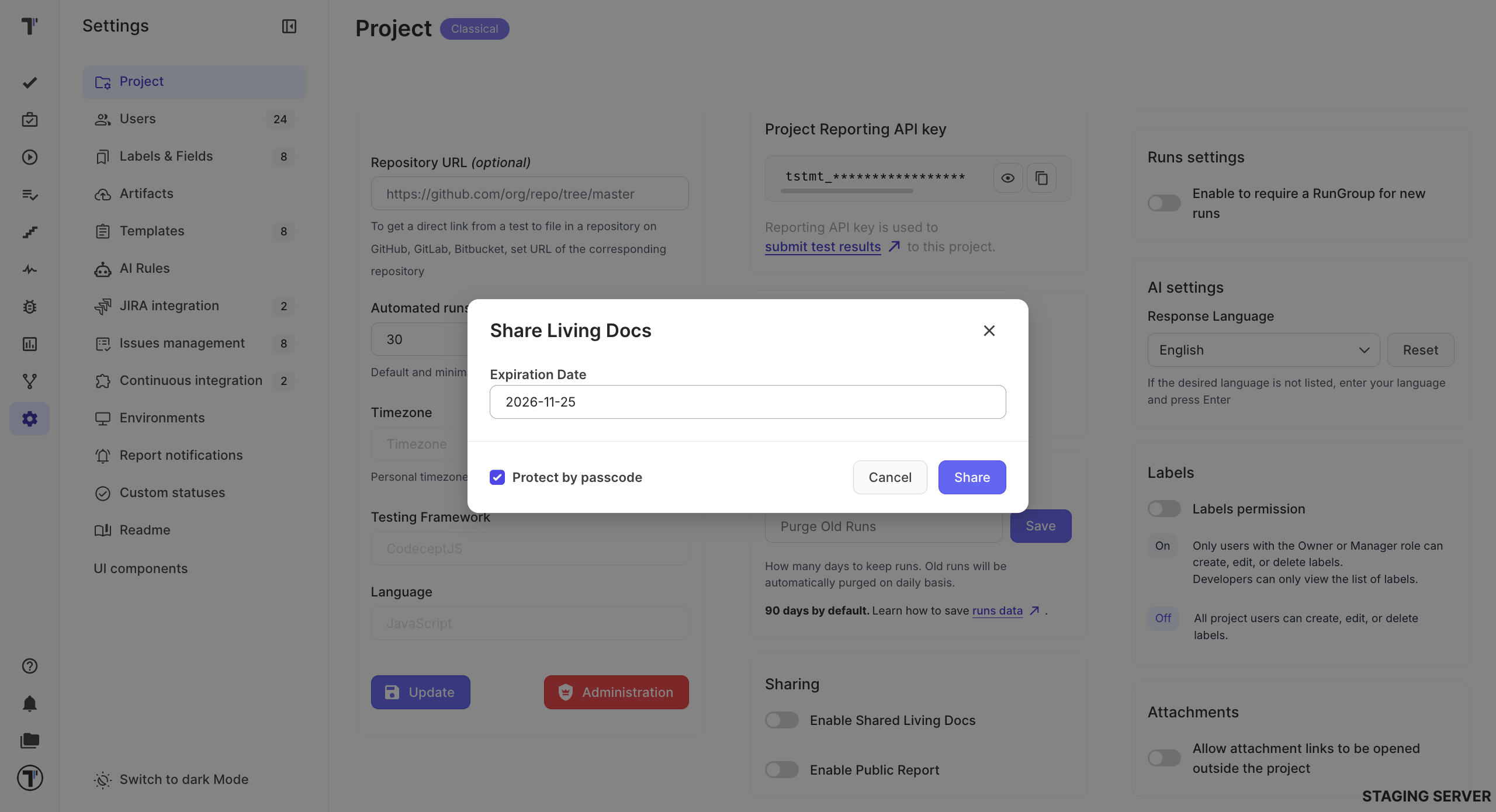
Your docs are shared. The link and the expiration date show under the toggle in the Sharing section.
Open the Shared Docs
Section titled “Open the Shared Docs”Guests open the link and enter the 5-digit passcode. Project members open the docs without the passcode. The passcode also protects the suite, test, and embedded pages.
Stop Sharing
Section titled “Stop Sharing”Turn off Enable Shared Living Docs. The link stops working at once.
When the expiration date passes, sharing turns off. To share again, turn on the toggle. Guests then need the new passcode.
Embed Living Documentation
Section titled “Embed Living Documentation”Living documentation can be embedded into your website, you have a possibility to:
- Embed specific suite.
- Embed specific test.
- Embed tests with a specific tag or Jira id.
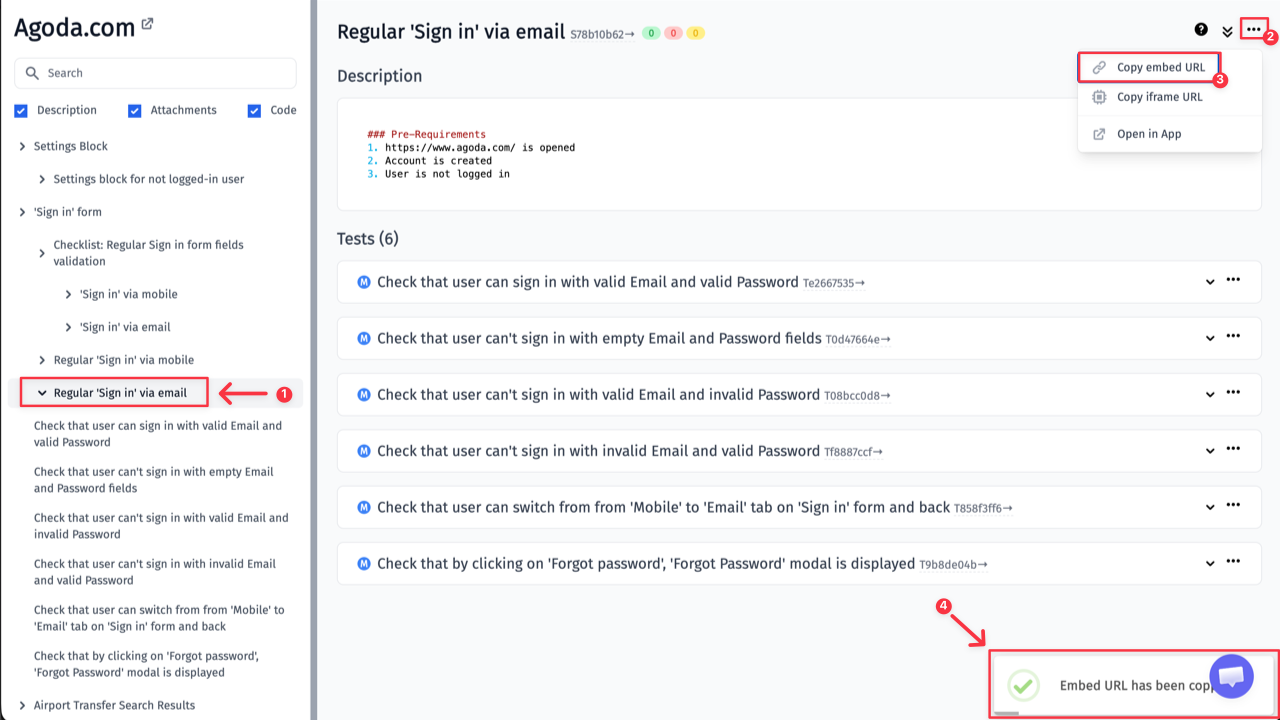
To embed a suite you have to:
- Select a suite on a living documentation page.
- Open a drop-down menu under three dots (…).
- Select Copy embed URL option.
- See the confirmation message that embed URL has been copied to your clipboard.
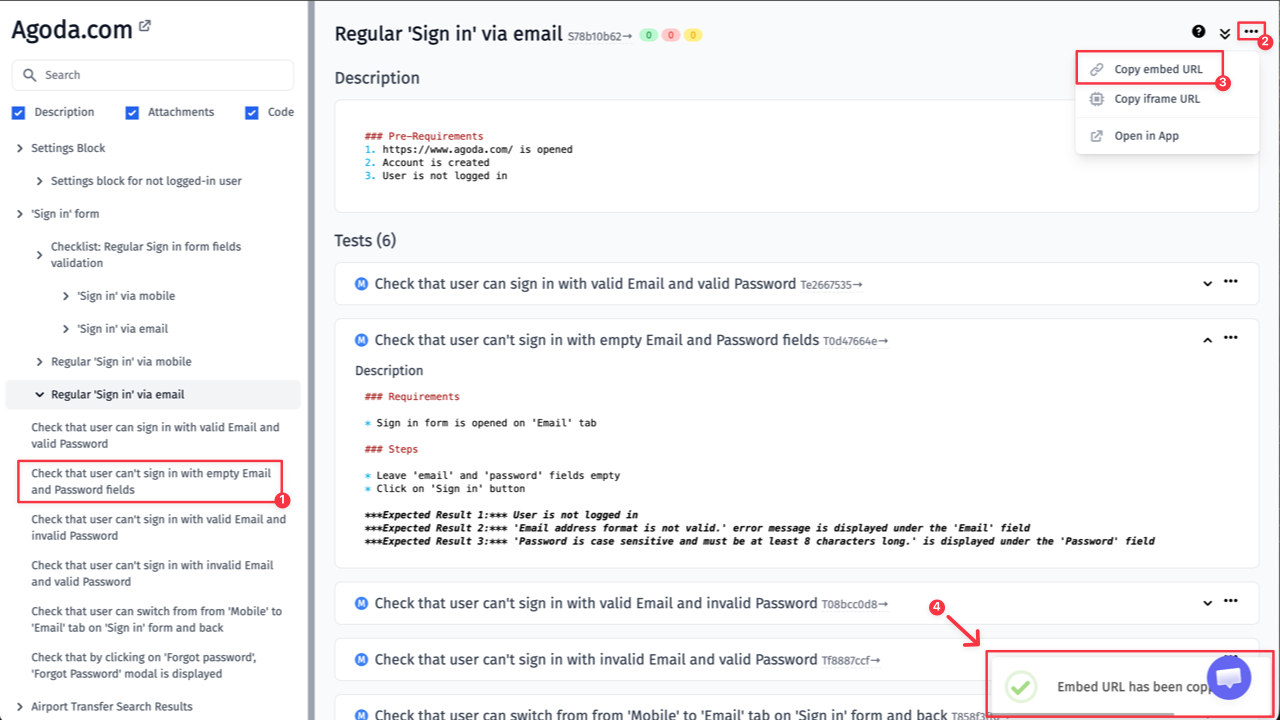
To embed a test you have to:
- Select a specific test on a living documentation page.
- Open a drop-down menu under three dots (…).
- Select Copy embed URL option.
- See the confirmation message that embed URL has been copied to your clipboard.
Tests by Tag or Jira ID
Section titled “Tests by Tag or Jira ID”To embed tests by @smoke tag you need to follow this template (don’t forget to replace {project_slug} with the real value):
<iframe src="https://app.testomat.io/docs/projects/{project_slug}/tests/embed?tag=@smoke"></iframe>To embed test with Jira id you need to follow this template (don’t forget to replace {project_slug} and {jira_id} with the real values):
<iframe src="https://app.testomat.io/docs/projects/{project_slug}/tests/embed?jira_id={jira_id}"></iframe>Tests Parameters
Section titled “Tests Parameters”You can provide extra parameters in the query string:
- frame_params[expand_all] - expand all tests by default.
- frame_params[hide_code] - hide code in tests.
- frame_params[hide_description] - hide description in tests.
- frame_params[hide_attachments] - hide attachments in tests.
Example
<iframe src="https://app.testomat.io/docs/projects/{project_slug}/tests/embed?tag=@smoke&frame_params[expand_all]=1&frame_params[hide_code]=1"></iframe>Embed Link for Confluence
Section titled “Embed Link for Confluence”With Testomat.io Living documentation, you can enrich your Confluence by adding tests or suites. This can be done within a Confluence page:
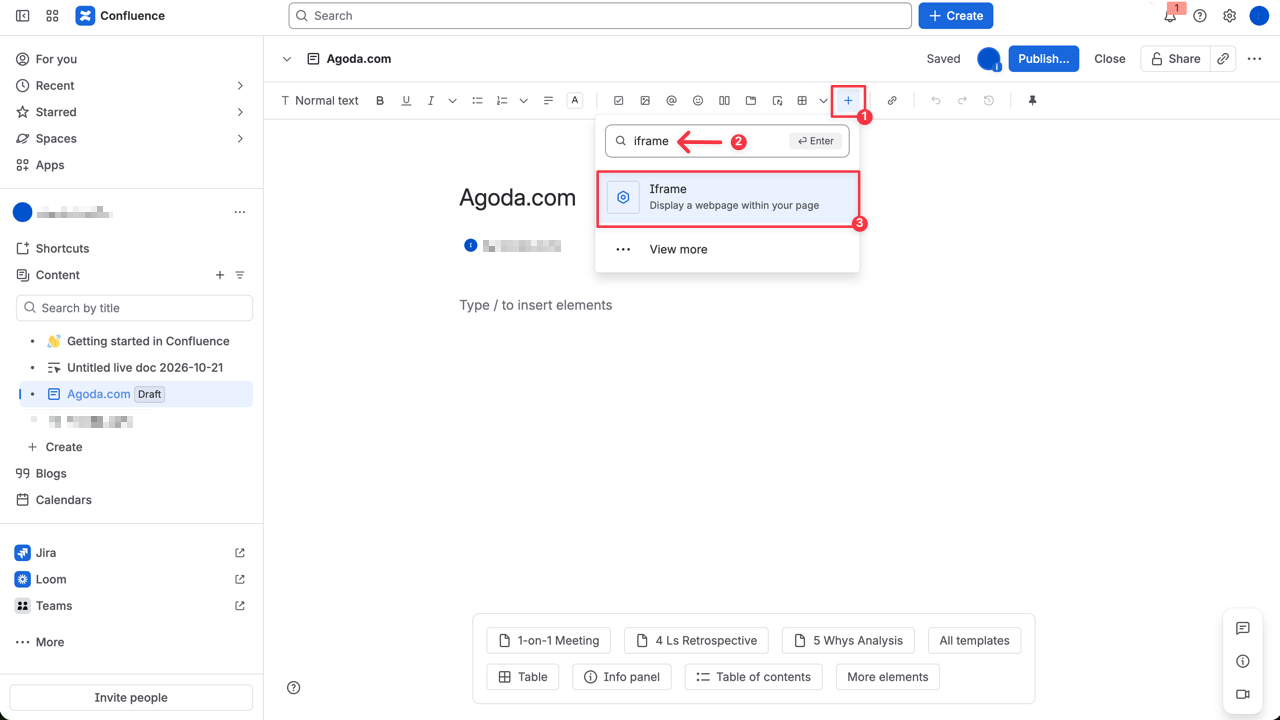
- Open your Confluence page editor - click Insert.
- Type iframe in the search field.
- Select Iframe plugin.
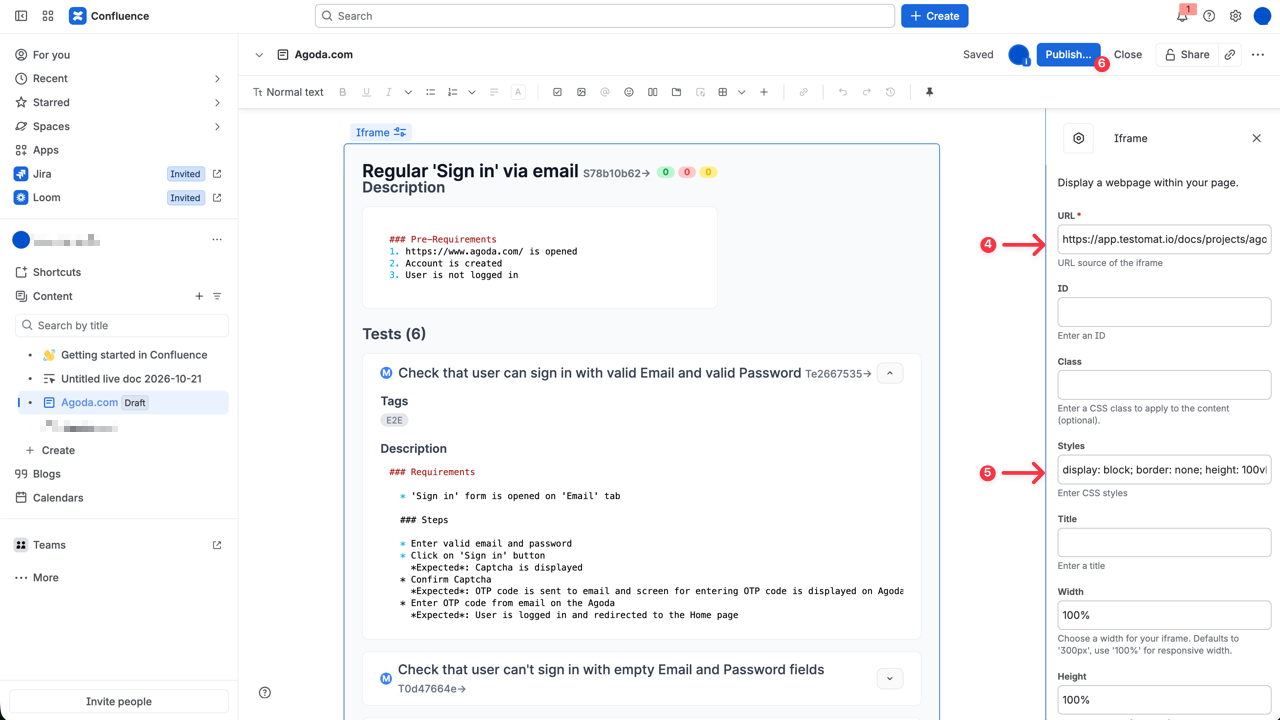
- Enter the embed URL you generated in the Living documentation.
- Fill in the fields of your choice.
For example: display: block; border: none; height: 100vh; width: 100%; height:100%;
- Click Publish.
Search within Living Documentation
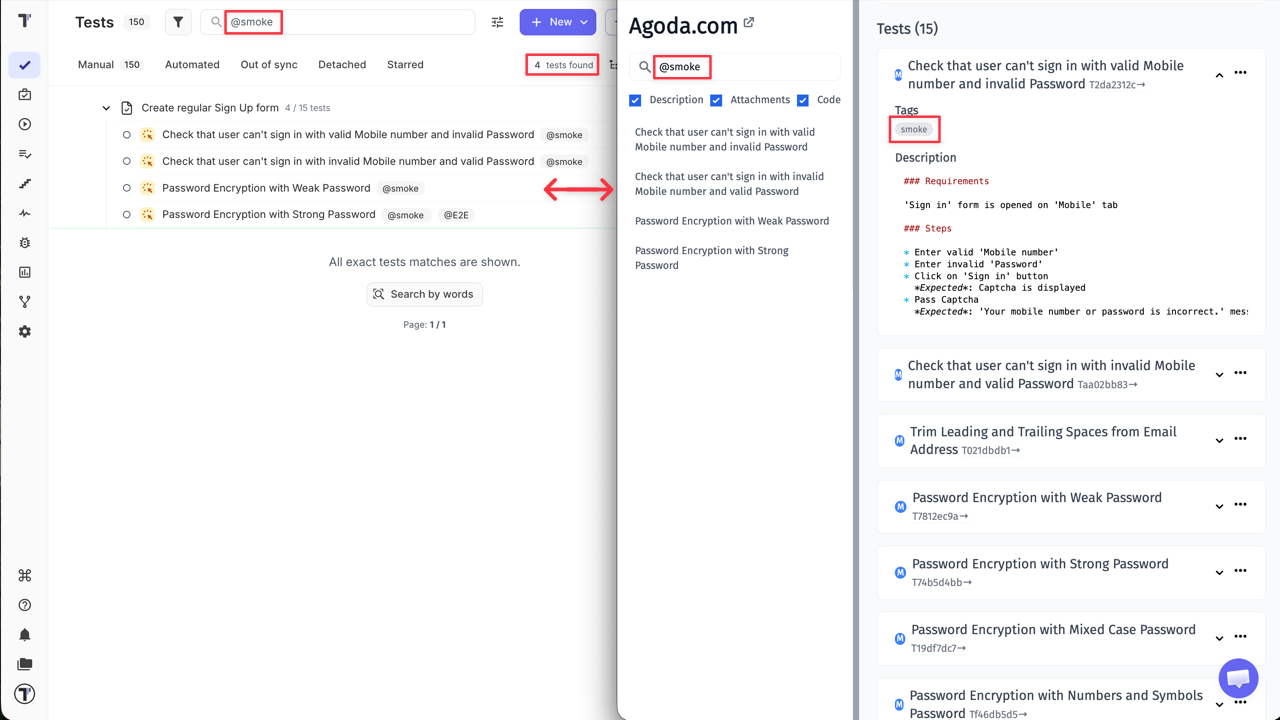
Section titled “Search within Living Documentation”You can search for specific tests within Living Documentation. The search functionality works the same way as it does in the Tests tab in Testomatio. You can search using two parameters:
-
Search by tags – Type a tag into the search field. A list of tests that match the tag will be displayed under the search field.
-
Search by keywords – Type a keyword into the search field. A list of tests that match the keyword will be displayed under the search field.